
Deze inhoud is nog niet vertaald.
Fade in
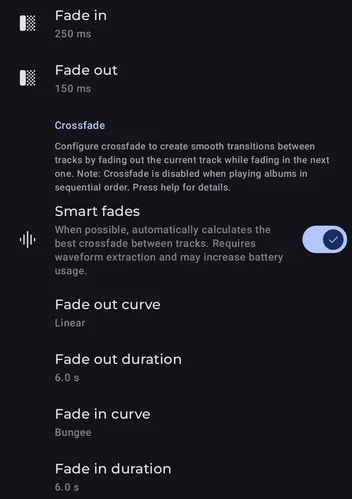
Section titled “Fade in”Apply a small fade in effect when starting playback. (Start of new play session, play a pause, when pressing next or manually changing the current track).
Fade out
Section titled “Fade out”Apply a small fade out effect when pausing playback. (When pausing, when pressing next or manually changing the current track).
Crossfade
Section titled “Crossfade”Crossfade allows you to blend two adjacent tracks by overlapping the end of the current track with the beginning of the next. This can create seamless transitions, especially when listening to playlists or shuffle mode.
Smart Fades
Section titled “Smart Fades”When possible, Symfonium will analyze each track’s waveform and calculate the optimal crossfade points and curves.
- Enabled: Symfonium scans track waveforms in the background and applies a custom‐calculated crossfade that matches musical beats, volume, or silence.
- Disabled: Symfonium uses the fixed “Fade In” and “Fade Out” durations for all transitions, without analyzing waveforms.
Standard crossfade
Section titled “Standard crossfade”Enabling crossfade creates smooth transitions between tracks when you’re not listening to an album in its original order. You can customize:
- Fade-out duration: How long the current track takes to fade out.
- Fade-in duration: How long the next track takes to fade in.
- Fade curves: The style and pace at which the volume changes during transitions.
These settings allow you to create transitions exactly to your preference.
Fade-out Curve
Section titled “Fade-out Curve”Defines how the volume decreases at the end of a track:
- Disabled: Turns off fade-out.
- Linear: Volume decreases evenly from maximum to silent.
- Smooth: Gradually decreases volume smoothly.
- Bungee: Volume decreases slowly at first, then quickly drops.
- Flat: Volume stays constant without fading.
Fade-out Duration
Section titled “Fade-out Duration”Specifies how long the fade-out effect lasts.
Fade-in Curve
Section titled “Fade-in Curve”Defines how the volume increases at the start of the next track:
- Disabled: Turns off fade-in.
- Linear: Volume increases evenly from silent to maximum.
- Smooth: Gradually increases volume smoothly.
- Bungee: Volume quickly increases at first, then slows down.
- Flat: Track starts immediately at full volume without fading.
Fade-in Duration
Section titled “Fade-in Duration”Specifies how long the fade-in effect lasts.
How “Crossfade” Works
Section titled “How “Crossfade” Works”Standard Crossfade (Smart Fades Off)
Section titled “Standard Crossfade (Smart Fades Off)”- When one track is within Fade Out ms of ending, Symfonium immediately begins fading out.
- At the same time, the next track begins fading in over Fade In ms.
- Result: Two tracks overlap for up to
min(Fade In, Fade Out)milliseconds, creating a basic crossfade.
Smart Crossfade (Smart Fades On)
Section titled “Smart Crossfade (Smart Fades On)”- Symfonium scans each track’s waveform to find an optimal “break point” (e.g., at a silence or beat).
- Instead of simply overlapping by a fixed duration, it attempts to align musical transitions:
- Fade-out begins at a musically appropriate moment (e.g., after a final chorus or at a silence).
- Fade-in begins at the next track’s most natural start.
- This yields a smoother, more musical blend between songs.
Important Notes
Section titled “Important Notes”- Synchronization: Fade-out and fade-in effects finish simultaneously at the end of the active track if both are enabled.
- Basic crossfade: For a balanced crossfade, set both fade-out and fade-in durations equally and adjust curves to achieve your desired effect.
- Instant start: If fade-in is disabled, the current track fades out according to your settings, but the next track immediately starts at full volume.
- Flat curve: Selecting a flat curve maintains full volume during the transition, allowing one track to stay fully audible throughout.