
Ta treść nie jest jeszcze dostępna w Twoim języku.
Global
Section titled “Global”
In landscape configuration you can directly copy the settings from the portrait configuration. That’s why it’s often better to start with portrait settings first.

You can press the preview button at any moment to see your changes. The preview is a little interactive, you can play/pause and change tracks to better see how it will look.

In landscape configuration you can configure the position of most global items.
Background
Section titled “Background”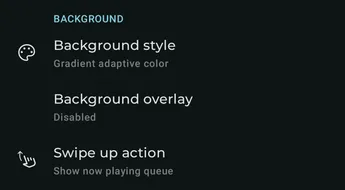
Background Style
Section titled “Background Style”Choose between different background styles for the expanded now playing.
Background Overlay
Section titled “Background Overlay”Choose between different overlays for the background of the expanded now playing.
Swipe up action
Section titled “Swipe up action”Configure swipe up action for the expanded now playing.
General
Section titled “General”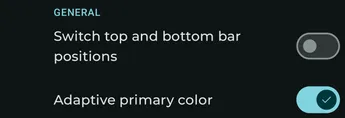
Switch top and bottom bar positions
Section titled “Switch top and bottom bar positions”Configure top and bottom bar positions for the expanded now playing.
Adaptive Primary Color
Section titled “Adaptive Primary Color”Configure background color for the expanded now playing.
Top bar
Section titled “Top bar”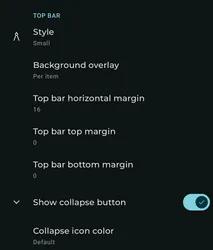
Configure top bar style.
Background overlay
Section titled “Background overlay”Configure background overlay for the top bar.
Top Bar margins
Section titled “Top Bar margins”Configure space around the top bar.
Show collapse button
Section titled “Show collapse button”Toggle visible collapse button for top bar.
Collapse icon color
Section titled “Collapse icon color”Configure color for the collapse icon in the top bar.
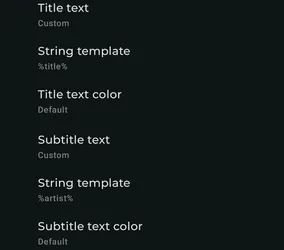
Title text
Section titled “Title text”Configure info displayed as Title in top bar.
Subtitle text
Section titled “Subtitle text”Configure info displayed as Subtitle in top bar.
String Template
Section titled “String Template”Configure string (text) to be displayed as Title or Subtitle text.
Text Color
Section titled “Text Color”Configure font color for Title & Subtitle texts
See Symfonium custom string template for the documentation about Symfonium string templates.
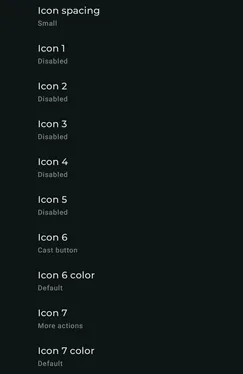
Configure Icon(s) in the top bar.
Icon color
Section titled “Icon color”Configure color for icon(s) in the top bar.
Cover art
Section titled “Cover art”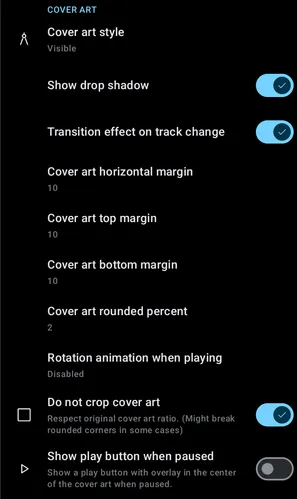
Cover Art Style
Section titled “Cover Art Style”Configure the style for the cover (album) art.
Cover Art Margin(s)
Section titled “Cover Art Margin(s)”Configure the space around the cover (album) art.
Cover Art Rounded Percent
Section titled “Cover Art Rounded Percent”Configure the roundness of the cover (album) art corners.
Rotation animation when playing
Section titled “Rotation animation when playing”Configure rotation of cover (album) art during playback.
Do not crop cover art
Section titled “Do not crop cover art”Toggle to keep original cover art aspect ratio. (May remove / negate rounded corners)
Show play button when paused
Section titled “Show play button when paused”Toggle visible play button overlay on cover (album) art in the Now Playing Screen (when playback is stopped).
Icon Overlay
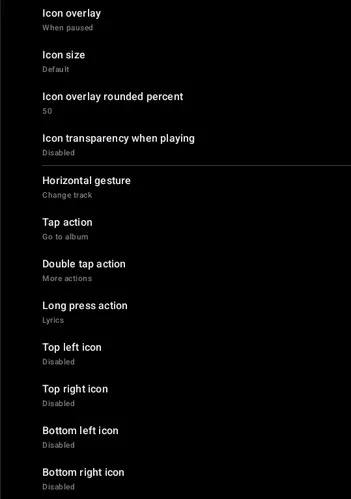
Section titled “Icon Overlay”Configure cover (album) art icon overlay (visibility).
Icon Size
Section titled “Icon Size”Configure size of Icon overlay.
Icon Transparency when playing
Section titled “Icon Transparency when playing”Configure transparency level of overlay icons.
Horizontal Gesture
Section titled “Horizontal Gesture”Configure the action when cover (album) art is horizontal swiped (left / right).
Tap Action
Section titled “Tap Action”Configure action when cover (album) art is single tapped.
Double Tap Action
Section titled “Double Tap Action”Configure action when cover (album) art is double tapped.
Long Press Action
Section titled “Long Press Action”Configure action when cover (album) art is long pressed.
Icons (Top / Bottom, Left / Right)
Section titled “Icons (Top / Bottom, Left / Right)”Configure overlay icons on the cover (album) art.
Controls and information
Section titled “Controls and information”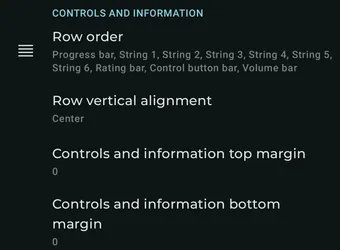
Row Order
Section titled “Row Order”Configure visible order of control & information elements.
Row Vertical alignment
Section titled “Row Vertical alignment”Configure vertical alignment (spacing / position) of controls & information.
Controls Margin(s)
Section titled “Controls Margin(s)”Configure the spacing around the controls & information elements.
Progress Bar
Section titled “Progress Bar”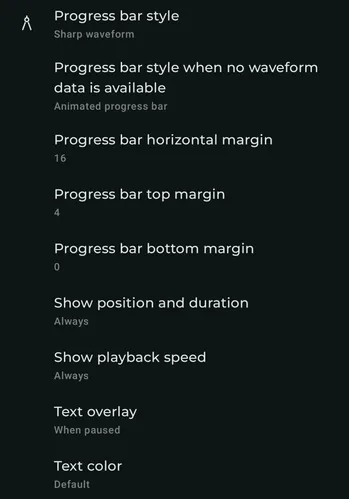
Progress Bar Style
Section titled “Progress Bar Style”Configure the style of the progress bar.
Progress bar style when no waveform data is available
Section titled “Progress bar style when no waveform data is available”Configure the default style of the progress bar when waveform is disabled or otherwise not available.
Progress bar margins
Section titled “Progress bar margins”Configure the space around the progress bar.
Show position and duration
Section titled “Show position and duration”Configure if & when current or total track duration is displayed with the progress bar.
Show playback speed
Section titled “Show playback speed”Configure whether playback speed is visible.
Text Overlay
Section titled “Text Overlay”Configure over for text portions of the progress bar.
Text color
Section titled “Text color”Configure color for the text portions of the progress bar.
Volume bar
Section titled “Volume bar”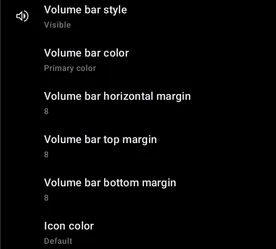
Volume Bar Style
Section titled “Volume Bar Style”Configure the visibility style of the volume bar.
Volume bar margin(s)
Section titled “Volume bar margin(s)”Configure the space around the volume bar.
Icon Color
Section titled “Icon Color”Configure the color of the icons in the volume bar.
Rating bar
Section titled “Rating bar”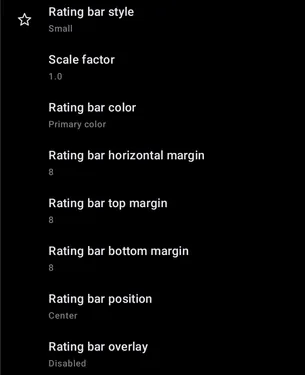
Rating bar Style
Section titled “Rating bar Style”Configure style of the rating bar.
Scale Factor
Section titled “Scale Factor”Fine tune the sizing of the rating bar.
Rating bar margin(s)
Section titled “Rating bar margin(s)”Configure the space around the rating bar.
Rating bar position
Section titled “Rating bar position”Configure the position of the rating bar within the Now playing screen.
Rating bar overlay
Section titled “Rating bar overlay”Configure overlay on rating bar.
Strings
Section titled “Strings”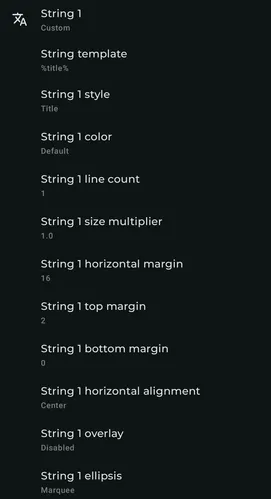
String
Section titled “String”Configure the text / info that appears in the compact player.
String Style
Section titled “String Style”Configure text style / weight.
String Color
Section titled “String Color”Configure text color.
String line count
Section titled “String line count”Configure the number of lines of text visible.
String size multiplier
Section titled “String size multiplier”Configure text (font) size.
String margins
Section titled “String margins”Configure spacing around the text.
String horizontal alignment
Section titled “String horizontal alignment”Configure horizontal alignment & spacing of text.
String overlay
Section titled “String overlay”Configure overlay of text.
String ellipsis
Section titled “String ellipsis”Select how Symfonium displays text that does not completely fit on screen.
Control button bar
Section titled “Control button bar”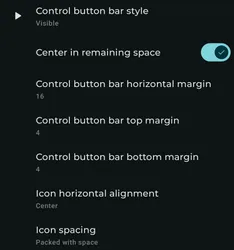
Control button bar style
Section titled “Control button bar style”Configure the style of the playback & music control buttons.
Center in remaining space
Section titled “Center in remaining space”Configure the spacing of the control button bar within the now playing screen.
Control button margin(s)
Section titled “Control button margin(s)”Configure the spacing around the control button bar.
Icon Horizontal Alignment
Section titled “Icon Horizontal Alignment”Configure the alignment of all icons in the control button bar.
Icon Spacing
Section titled “Icon Spacing”Configure the spacing between icons in the control button bar.
Icon Action
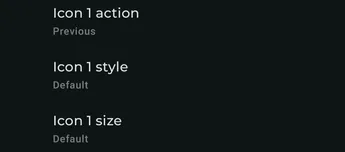
Section titled “Icon Action”Configure what happens when an icon is single pressed.
Icon Style
Section titled “Icon Style”Configure the style of the icons in the control button bar.
Icon Size
Section titled “Icon Size”Configure the sizing of the icons in the control button bar.
Bottom bar
Section titled “Bottom bar”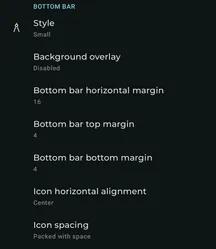
Show in controls and information
Section titled “Show in controls and information”Toggle whether the bottom bar shows within the controls and info on the Now playing screen.
Background overlay
Section titled “Background overlay”Configure overlay for background of bottom bar.
Bottom bar margin(s)
Section titled “Bottom bar margin(s)”Configure the spacing around the bottom bar.
Icon Horizontal alignment
Section titled “Icon Horizontal alignment”Configure the alignment of all icons in the bottom bar.
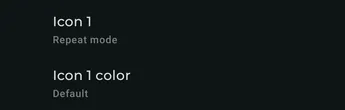
Configure what happens when an icon in the bottom bar is single pressed.
Icon Color
Section titled “Icon Color”Configure the color of icons in the bottom bar.
Lyrics and queue
Section titled “Lyrics and queue”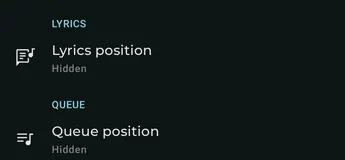
In landscape mode you can have permanent lyrics and/or queue visible.