
Bu içerik henüz dilinizde mevcut değil.
You can configure the notification and media session buttons.
Those buttons are now linked, and the positioning of skip next and skip previous is mostly enforced by Google.
If you disable skip next and skip previous you have access to up to 5 options. (Depending on your OS version and where you are looking)
Settings
Section titled “Settings”They are available from Settings/Playback/Configure notification, media session and headset buttons.
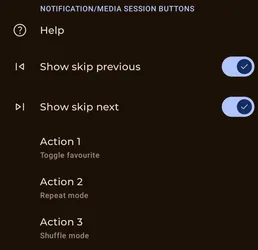
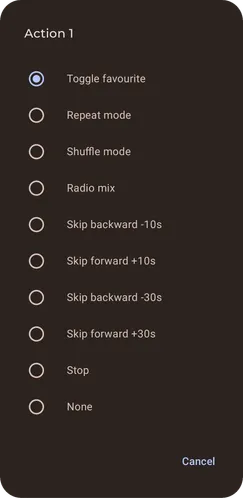
Media session (Android 13+)
Section titled “Media session (Android 13+)”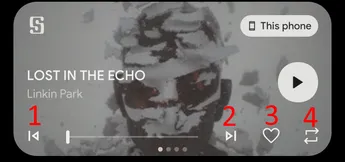
In the notification shade this only support 4 actions with the skip previous and skip next position being fixed.
So if you enable both of the skip option, the action button 1 will be in position 3. If you enable none, then action 1 button will be at position 1.
Notification
Section titled “Notification”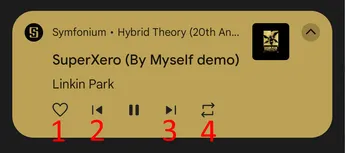
This only support 4 actions with the skip previous and skip next position being fixed.
So if you enable both of the skip option, the action button 2 will be in position 4. If you enable none, then action 2 button will be at position 2.
Android Auto
Section titled “Android Auto”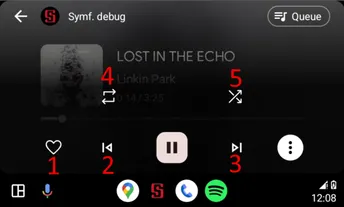
This support 5 actions with the skip previous and skip next position being fixed.
So if you enable both of the skip option, the action button 2 will be in position 4. If you enable none, then action 2 button will be at position 2.
If you do not enable the 5th action (or the 3rd if you enable both skips), the three-dot menu is not visible and all four actions are directly accessible.