Это содержимое пока не доступно на вашем языке.
Equalizer settings are stored separately for each output device. Open Settings > Playback > Output settings, select an output, then open its Equalizer tab. The Equalizer action in the now-playing menu opens the same tab directly for the current output.
Configuration
Section titled “Configuration”- Each stage of the equalizer can be enabled or disabled by toggling its switch:

- You can easily reset each step by clicking the corresponding reset button:

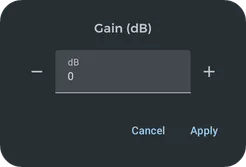
- You can set precise values for each slider by pressing the value in the left column to open the configuration dialog:
Output devices and profiles
Section titled “Output devices and profiles”The Output settings list contains the current output and previously detected outputs, such as the phone speaker, wired headphones, individual Bluetooth devices, USB devices, and remote playback. Select the output you want to configure before changing its equalizer.
Symfonium saves playback, ReplayGain, and DSP settings for each output automatically. When the active output changes, its own saved configuration is used; you no longer link an equalizer profile to a device with a headphone button.
Named profiles remain available for reusing a complete equalizer configuration. Use Save as to create one and Load to apply one to the output currently being edited. If you modify a loaded named profile, Save updates that reusable profile. Device-specific changes themselves do not require a separate save action.
Virtualizer
Section titled “Virtualizer”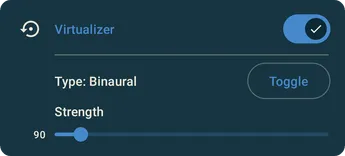
An audio virtualizer is a general name for an effect to spatialize audio channels. The exact behavior of this effect is dependent on the number of audio input channels and the types and number of audio output channels of the device. For example, in the case of a stereo input and stereo headphone output, a stereo widening effect is used when this effect is turned on.
The effect support 2 modes depending on your output.
Binaural for headphones and Transaural for speakers. Press the toggle button to alternate between the modes.
Preamp
Section titled “Preamp”The equalizer includes a classic preamp that lets you increase or decrease the volume. It can be useful if you want to push some equalizer bands while avoiding clipping. The compressor and limiter can also be used for that purpose.

AutoEQ
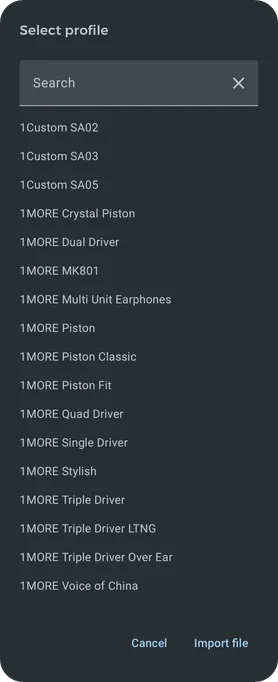
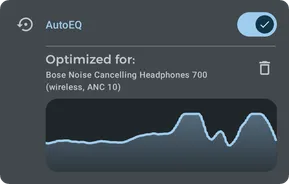
Section titled “AutoEQ”Symfonium downloads and caches the AutoEQ database (https://www.autoeq.app/ & GitHub - jaakkopasanen/AutoEq: Automatic headphone equalization from frequency responses), which contains advanced profiles tailored for many headphones.
See also: Use a custom AutoEQ profile
AutoEQ notes
Section titled “AutoEQ notes”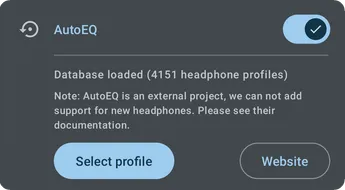
Equalizer
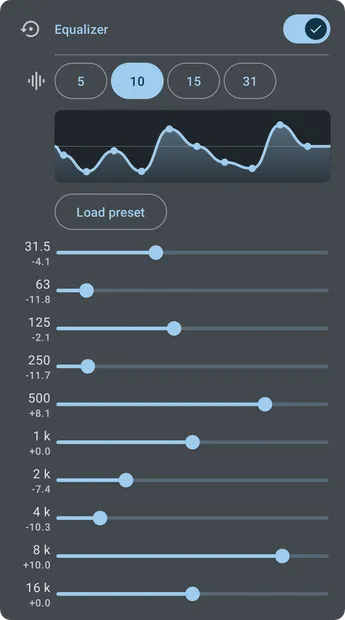
Section titled “Equalizer”Classic equalizer with 5,10,15 or 31 bands in normal mode. (Any number of custom bands in expert mode)
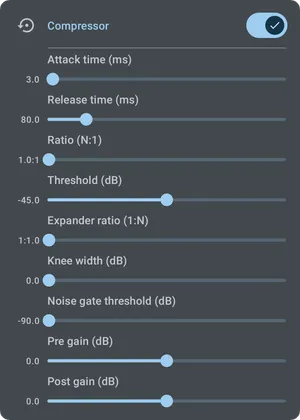
Compressor
Section titled “Compressor”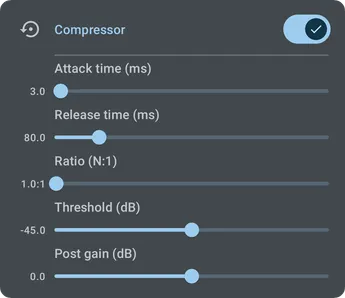
You can read https://www.izotope.com/en/learn/audio-dynamics-101-compressors-limiters-expanders-and-gates.html for some documentation on compressor.
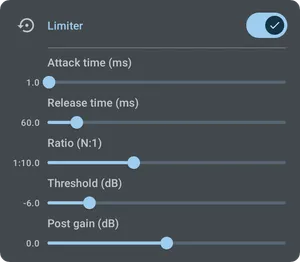
Limiter
Section titled “Limiter”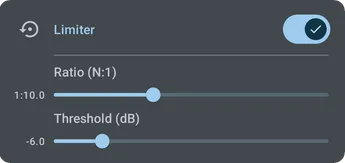
You can read https://www.izotope.com/en/learn/audio-dynamics-101-compressors-limiters-expanders-and-gates.html for some documentation on limiter.
Volume boost
Section titled “Volume boost”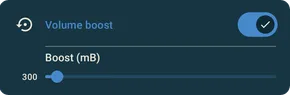
Volume boost is an audio effect for increasing audio loudness. The processing uses a target gain value, which determines the maximum amount by which an audio signal will be amplified. Signals amplified outside of the sample range supported by the platform are compressed.
This effect is simple but you can always achieve better results by using the pre amp and eventually the limiter settings!
Bass boost
Section titled “Bass boost”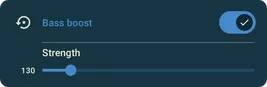
Bass boost is an audio effect to boost or amplify low frequencies of the sound. It is comparable to a simple equalizer but limited to one band amplification in the low frequency range.
This effect is simple but you can always achieve better results by using the advanced equalizer and fine tuning the bands.
Expert mode
Section titled “Expert mode”In playback advanced settings you can enable expert mode for the equalizer. (Settings - Playback - Advanced settings)
This enables full control over the equalizer bands and open more options for the compressor and the limiter.
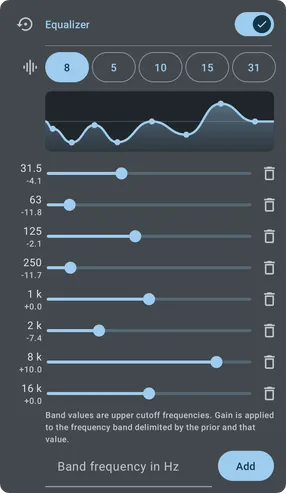
You can add as many bands as necessary by pressing again the Add button. (Duplicated bands are automatically ignored)