
本頁內容尚未翻譯。
Symfonium tries to sync your data automatically when there are changes. However, not everything can be detected, such as metadata updates or playlist updates.
You can force a sync for a media provider at any time.
From Sync manager
Section titled “From Sync manager”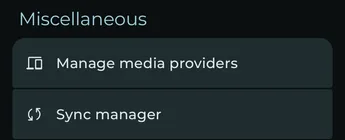
Open Settings, then press Sync manager under Miscellaneous.
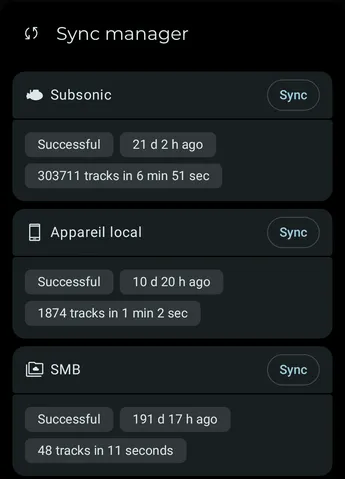
The Sync manager lists every media provider and the status of its last sync. Press Sync for the provider you want to update. To force a full sync, long press Sync.
From the filter menu
Section titled “From the filter menu”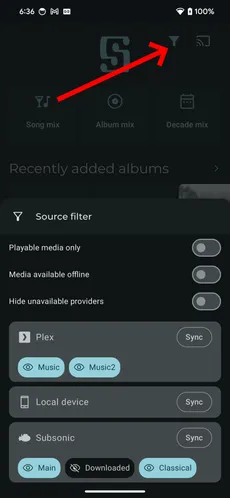
Press the filter menu, then press the Sync button for the provider you want to update. Some providers support differential sync. To force a full sync, long press the Sync button.
If a sync is running, a small animation appears on the filter button.
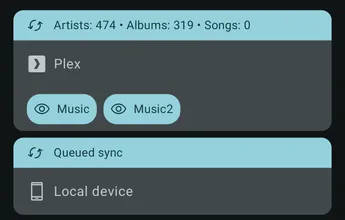
The current sync status is also displayed in each provider card.
From the Manage media providers settings page
Section titled “From the Manage media providers settings page”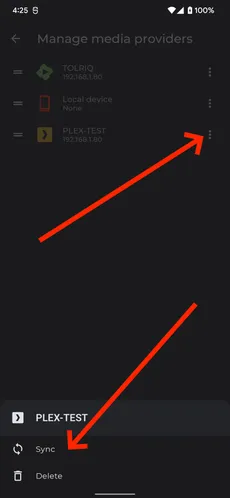
Press the three-dot button for the media provider, then select Sync. This always starts a full sync.