
本頁內容尚未翻譯。
Now Playing Style
Section titled “Now Playing Style”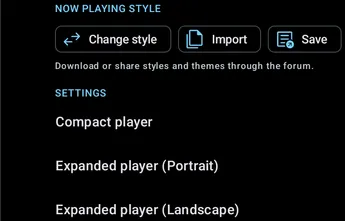
Change style
Section titled “Change style”Switch between saved and template Now Playing Styles.
Import
Section titled “Import”Import a downloaded Now Playing Style.
Save the current Now Playing Style.
This includes settings for the compact player and both expanded-player orientations.
Browse the Symfonium Styles website to view and download shared Now Playing and Interface Styles.
The Settings group opens separate configuration pages for Compact Now Playing, Expanded Now Playing (Portrait), and Expanded Now Playing (Landscape).
Compact Now Playing
Section titled “Compact Now Playing”
Configure the size of the compact player.
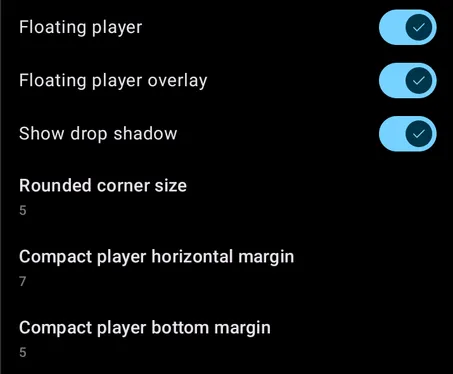
Floating player
Section titled “Floating player”Toggle the floating player.
Floating player overlay
Section titled “Floating player overlay”Enable background protection for the floating compact player.
Show drop shadow
Section titled “Show drop shadow”Show a drop shadow behind the floating compact player.
Rounded corner size
Section titled “Rounded corner size”Configure the corner radius of the floating compact player.
Compact player horizontal margin
Section titled “Compact player horizontal margin”Configure horizontal spacing around the floating compact player.
Compact player bottom margin
Section titled “Compact player bottom margin”Configure the spacing below the floating compact player.
General
Section titled “General”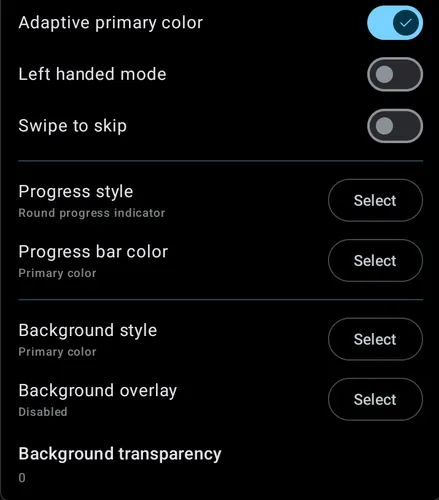
Adaptive primary color
Section titled “Adaptive primary color”Use an adaptive primary color for the compact player.
Left handed mode
Section titled “Left handed mode”Move compact-player controls for left-handed use.
Swipe to skip
Section titled “Swipe to skip”Enable swiping on the compact player to move between tracks.
Progress style
Section titled “Progress style”Configure the progress bar style for the compact player.
Progress bar color
Section titled “Progress bar color”Configure progress bar color.
Inverted colors
Section titled “Inverted colors”Invert the configured progress colors.
Hide buffer progress
Section titled “Hide buffer progress”Hide the buffered portion of the progress indicator.
Background style
Section titled “Background style”Configure style for compact player background.
Background overlay
Section titled “Background overlay”Configure background overlay for compact player background.
Background transparency
Section titled “Background transparency”Configure transparency of background for compact player.
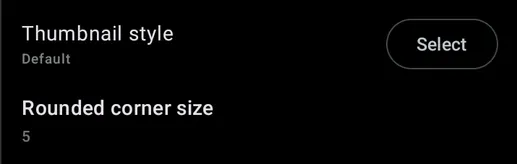
Thumbnail style
Section titled “Thumbnail style”Configure the style for the album cover thumbnail in the compact player.
Prefer animated artwork
Section titled “Prefer animated artwork”Use animated artwork when the provider supplies it.
Rounded corner size
Section titled “Rounded corner size”Configure corner radius (rounded corner) for the album cover thumbnail in the compact player.
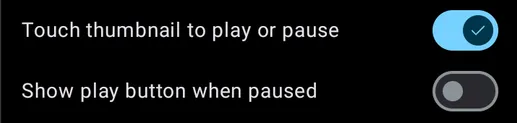
Touch thumbnail to play or pause
Section titled “Touch thumbnail to play or pause”Use the cover thumbnail as a Play/Pause button.
Show play button when paused
Section titled “Show play button when paused”Show a Play overlay on the cover thumbnail while playback is paused.
Cover rotation
Section titled “Cover rotation”Choose whether and how the cover rotates during playback.
Strings
Section titled “Strings”See Symfonium custom string template for the documentation about Symfonium string templates.
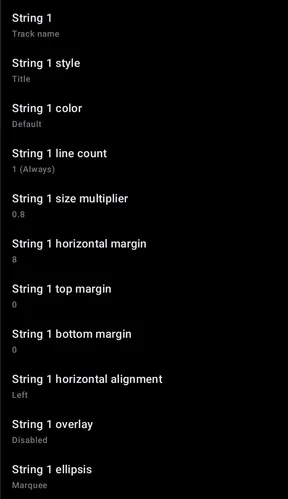
String 1 and String 2
Section titled “String 1 and String 2”Configure the two optional text areas shown in the compact player. Each can use a predefined value or a custom string template.
String style
Section titled “String style”Configure text style / weight.
String color
Section titled “String color”Configure text color.
String line count
Section titled “String line count”Configure the number of lines of text visible.
String size multiplier
Section titled “String size multiplier”Configure text (font) size.
String horizontal, top, and bottom margins
Section titled “String horizontal, top, and bottom margins”Configure spacing around each text area.
String horizontal alignment
Section titled “String horizontal alignment”Configure horizontal alignment & spacing of text.
String overlay
Section titled “String overlay”Configure overlay of text.
String ellipsis
Section titled “String ellipsis”Select how Symfonium displays text that does not completely fit on screen.
Buttons
Section titled “Buttons”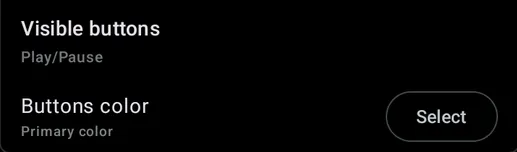
Visible buttons
Section titled “Visible buttons”Select which buttons appear for the compact player.
Back amount
Section titled “Back amount”When the Back button is visible, choose how many seconds it rewinds.
Forward amount
Section titled “Forward amount”When the Forward button is visible, choose how many seconds it skips ahead.
Button color
Section titled “Button color”Configure the color of the buttons for the compact player.
Expanded Now Playing
Section titled “Expanded Now Playing”See Settings - Now playing - Expanded player for options available in the Expanded players