
本頁內容尚未翻譯。
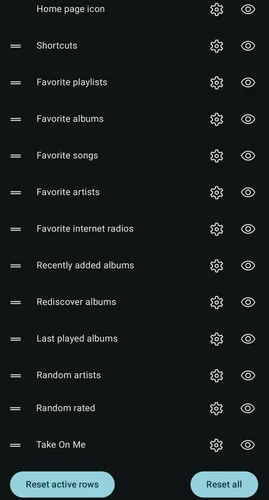
Configure everything about the home page from this screen.
Press the eye icon to show or hide rows, use the drag handle at the left to reorder the rows and press the settings button to configure each item.
Home page icon
Section titled “Home page icon”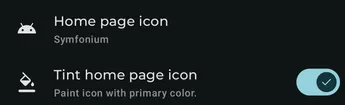
Home page icon
Section titled “Home page icon”Choose or hide the top icon from the home page.
Tint home page icon
Section titled “Tint home page icon”Enable this option to apply a color tint to the app icon on the home page, matching the primary color of the current theme. This can help the app icon stand out and provide a more cohesive look with the rest of the interface.
Shortcuts
Section titled “Shortcuts”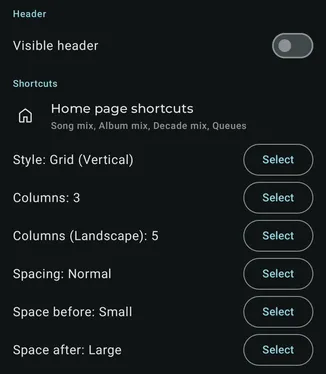
Select the visible shortcuts and configure how they are displayed as well as the optional header.
Settings can vary depending on the selected style. Experiment with all of them to build your perfect home page.
Overview rows
Section titled “Overview rows”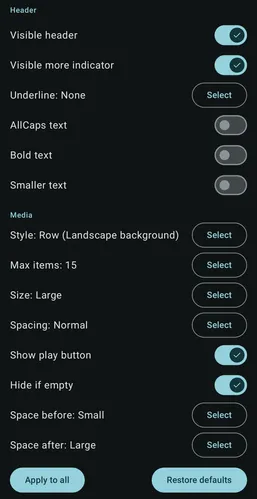
Configure how the media and the header for that row is displayed.
Settings can vary depending on the selected style. Experiment with all of them to build your perfect home page.
Use Copy from to copy another row’s display settings into the row you are editing. Its custom header text is preserved.
Use Apply to all to copy the current display settings to all overview rows.
Playlist rows
Section titled “Playlist rows”You can add any playlist as a configurable row by selecting Add to home in the playlist bottom sheet.
When editing a playlist row, use Change playlist to replace its playlist while keeping the row’s current display settings and position on the home page.