
Nội dung này hiện chưa có sẵn bằng ngôn ngữ của bạn.
Symfonium can import and keep in sync playlists that you create on your different media providers.
Import from a music media provider
Section titled “Import from a music media provider”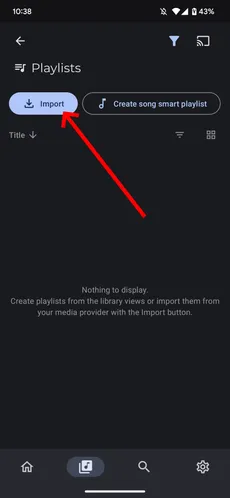
In the library section of the application click on Playlists then press the import button.
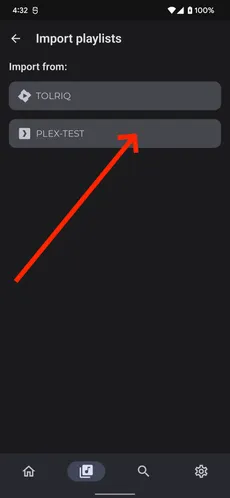
Select the provider you want to import from.
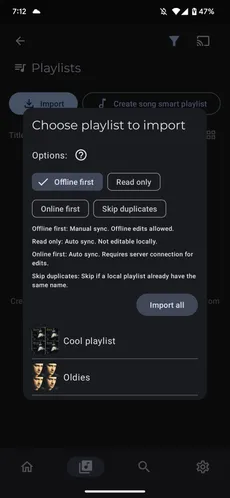
Select the playlist you want to import or press the Import all button.
Imported playlists support different mode for different needs:
- Offline first: The playlists can be manually synced to and from the server. The playlists can be edited offline.
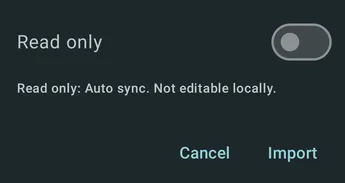
- Read only: The playlists can not be edited on Symfonium, they are automatically synced from the server when needed.
- Online first: The playlist are automatically synced, but can only be edited when connected to the server.
Enable the skip duplicate option to not import playlists if there’s already one with the same name. (Useful when using import all and having many playlists)
Import from a file media provider
Section titled “Import from a file media provider”File media providers do not have an API to list all playlists. For those providers, browse to your playlists in file mode, then import them.
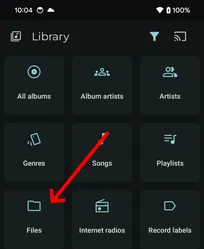
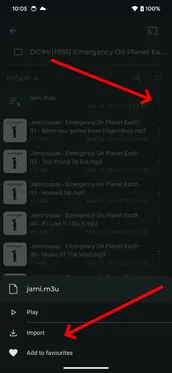
Navigate to your playlist, press the 3 dots button then select import.
You can enable the read only mode, in that case playlists will be automatically updated during sync if you change it’s content.
Sync a single playlist
Section titled “Sync a single playlist”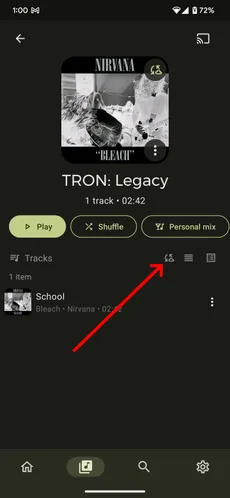
Playlists can be synced at any time by pressing the sync button. (Sync is automatic for read only playlists).
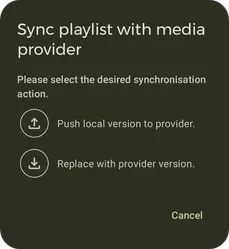
Symfonium will ask you if you want to refresh the local copy with the server version or if you want to replace the server version with the local copy.