
Nội dung này hiện chưa có sẵn bằng ngôn ngữ của bạn.
Symfonium can connect to your OneDrive account and play, cast and offline cache your music from it.
This provider is currently in experimental state until more users have confirmed that it works in most cases.
Tags are parsed with Symfonium custom tag parser.
Tags are cached but extracting them will take some time and network ressources, it is recommended to add your provider when connected to wifi.
Add provider
Section titled “Add provider”
Press Sign-In to open a web browser and give Symfonium access to your media files.
Symfonium never has access to your login or password, and you can revoke access at any time in your Microsoft account. (Sign in to your Microsoft account)
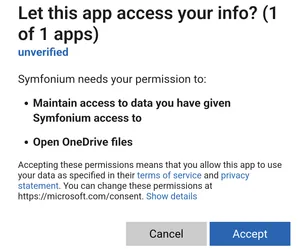
Press accept to give permission.

You can now press Add folder to select one or more root folders containing your music.

Press Add to start scanning your media and add them to Symfonium library.
Support
Section titled “Support”
If you have problems configuring your provider press the Enable button in the support card, then try again to add your host.

After Symfonium shows the error message, press the send button to open your email client with attached logs and write a message so that I can help you.
All settings
Section titled “All settings”
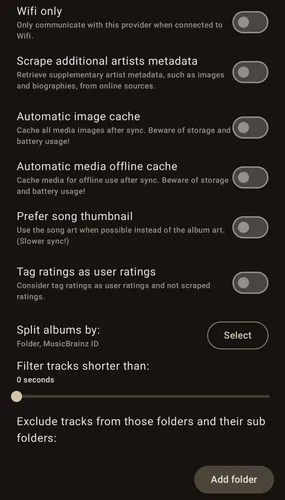
To access all available settings for a provider, edit the provider after it has been added. (Settings → Manage media providers: Settings - Manage media providers)
Wifi only
Section titled “Wifi only”Enable this option to prevent Symfonium from accessing the server when not connected to Wi-Fi.
Scrape additional artists metadata
Section titled “Scrape additional artists metadata”Try to download artists images and biography from online sources.
Automatic image cache
Section titled “Automatic image cache”Enabling this option will cache all media images locally on your device after each sync. However, it can also use up storage space on your device and potentially drain your battery faster if you have a large library with many images. It’s recommended to use this option if you have enough storage space available on your device and don’t mind the potential battery drain. If you have limited storage or battery life, it may be better to disable this option.
Automatic media offline cache
Section titled “Automatic media offline cache”Enabling this option will cache media files from selected libraries for offline usage after sync, allowing you to play your music even when you are not connected to the internet. However, this may consume a lot of storage and battery usage, so it is important to consider this before enabling this option.
Prefer song thumbnail
Section titled “Prefer song thumbnail”Will use each songs thumbnail in list instead of the album ones. Useful for compilations if each songs have a different image. Will require more storage cache and slower syncs.
Tag ratings as user ratings
Section titled “Tag ratings as user ratings”Ratings imported from media tags are normally considered as scraped ratings, enable this option to consider them user ratings.
Split album by
Section titled “Split album by”You can select how Symfonium split the albums. Each selected option must be equals for songs to be part of the same album.
Filter short tracks
Section titled “Filter short tracks”You can select the minimum duration for a song to help filtering unwanted media.
Exclude folders
Section titled “Exclude folders”You can exclude sub folders from the sync to remove unwanted data.
Custom parser details
Section titled “Custom parser details”See Symfonium custom tag parser for all the documentation about Symfonium custom tag parser.