
Nội dung này hiện chưa có sẵn bằng ngôn ngữ của bạn.
Symfonium enables users to easily access, organize, play, and cast music stored on their local Android devices.
To achieve this, the software offers multiple distinct modes. However, it’s worth noting that these modes are not compatible with each other, and switching between them requires removing and reconfiguring the provider. Therefore, we strongly recommend that users carefully evaluate and select their preferred mode early on, before adding any favorites that cannot be migrated between modes.
Add provider
Section titled “Add provider”To reduce the complexity of the different ways to access and manage your music, you just need to follow the wizard and select what best match your needs at each steps.
Media access
Section titled “Media access”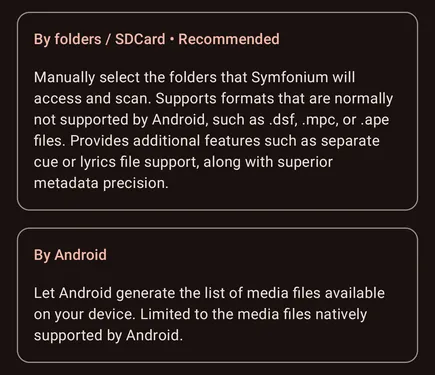
By folders / SDCard
Section titled “By folders / SDCard”
In this mode, Symfonium uses the Android Storage Framework to scan music files in user-specified folders. Due to Android limitations, you cannot select the root of an SD card or the Downloads folder. This mode is preferred because it supports full tag parsing and file types not natively supported by Android, such as DSF, MPC, APE, and WV.
This mode also supports external CUE files to split large audio files, and external lyrics.
Use the sync button after adding or modifying files. You can also enable Auto sync in the provider settings so Symfonium tries to scan the selected folders when the app starts and when media is added; this is not recommended for large libraries. (Sync media provider data)
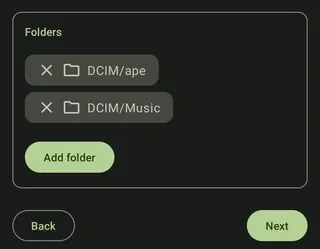
Press Add folder and add as many folders containing music as you need.
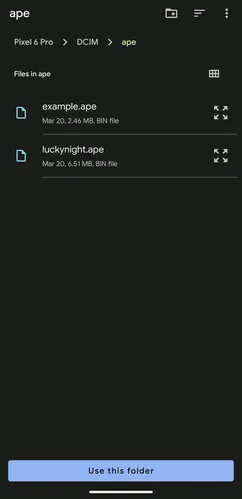
Then press Use this folder, then next.
By Android
Section titled “By Android”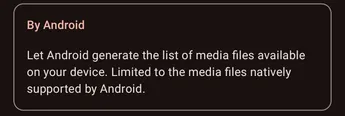
In this mode Android finds your media files and gives the list to Symfonium, while this is faster, this is limited to media files natively supported by Android.
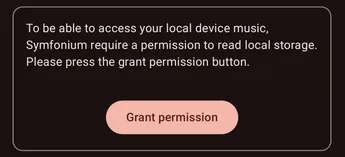
Press Grant permission to give Symfonium access to the Android music database.
You can then select how your music data is analyzed.
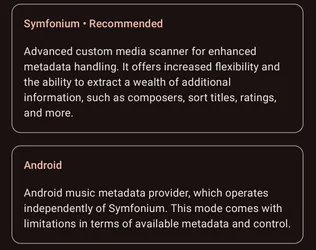
Symfonium parser
Section titled “Symfonium parser”Use Symfonium’s advanced tag parser to get metadata from your files, within the limits of the files provided by Android.
Android parser
Section titled “Android parser”Use the very limited metadata that Android provides for your files.
Artist metadata scraping
Section titled “Artist metadata scraping”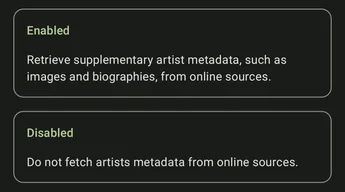
Select if you want Symfonium to try to find artist images and biography on Internet or not.
After the selection of this option your provider is added.
Provider settings
Section titled “Provider settings”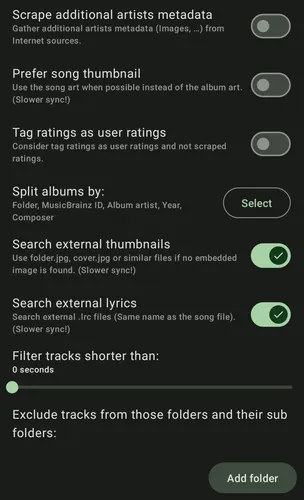
The available settings depend on the media-access and parser modes selected when the provider was added. To change those modes, remove and add the provider again.
Media access
Section titled “Media access”The provider page shows its current scanner mode. Android-backed modes let you grant the required audio permission. By folders / SDCard mode instead lets you add or remove source folders and set the media type for each source.
Tag cache
Section titled “Tag cache”Clear the cached tags before the next sync when files have changed but their updated tags are not detected. This option is available when Symfonium parses the tags.
Artist info folder
Section titled “Artist info folder”In By folders / SDCard mode, select a folder containing one subfolder per artist. The selected folder can be anywhere accessible through Android’s folder picker; it does not need to be inside a media-library root. See Artist information folder for its layout and supported metadata.
Scrape additional artist metadata
Section titled “Scrape additional artist metadata”Retrieve supplementary artist images and biographies from online sources. When enabled, the provider page also offers an action to clear previously scraped data.
Generate missing thumbnails from songs
Section titled “Generate missing thumbnails from songs”Generate artist and genre images from track artwork when no image is available.
Prefer track thumbnail
Section titled “Prefer track thumbnail”Use track artwork when possible instead of album artwork. This can be useful for compilations but makes synchronization slower.
Symfonium parser settings
Section titled “Symfonium parser settings”These options are available in modes that use Symfonium’s tag parser.
Tag ratings as user ratings
Section titled “Tag ratings as user ratings”Treat ratings imported from tags as user ratings instead of scraped ratings.
Artist tag as display artist
Section titled “Artist tag as display artist”Use the raw Artist tag as the display artist when present instead of building it from the parsed artist list.
Ignore explicit tags
Section titled “Ignore explicit tags”Do not import explicit-content markers from tags.
Ignore MusicBrainz IDs
Section titled “Ignore MusicBrainz IDs”Ignore MusicBrainz IDs from parsed tags. This can prevent artist or album splits caused by inconsistent IDs.
Prefer Year tag
Section titled “Prefer Year tag”Use the raw Year tag when present instead of extracting the year from full date tags.
Tag separators
Section titled “Tag separators”Configure the separators used for Artist/Album Artist tags, Genre tags, and MusicBrainz ID tags.
Split album by
Section titled “Split album by”Choose which fields must match for tracks to be grouped into the same album.
Folder-mode settings
Section titled “Folder-mode settings”These options are available in By folders / SDCard mode.
Auto sync
Section titled “Auto sync”Try to scan the selected folders automatically when the app starts and when media is added. This is not recommended for large libraries.
Automatic playlist import
Section titled “Automatic playlist import”Automatically import M3U and PLS files as read-only playlists while ignoring duplicates.
Encoding time as date added
Section titled “Encoding time as date added”Use the encoding-time tag as the date added when present, falling back to file dates.
Stable date added
Section titled “Stable date added”Keep the existing date added when files are modified.
General provider settings
Section titled “General provider settings”Scrobble as advertisement
Section titled “Scrobble as advertisement”Mark media from this provider as advertisements so compatible scrobblers can ignore them.
Exclude tracks shorter than
Section titled “Exclude tracks shorter than”Set a minimum track duration to filter out unwanted short media.
Excluded folders
Section titled “Excluded folders”Exclude selected subfolders from synchronization. Files hidden from Symfonium can also be restored here when available.
Clear playback history
Section titled “Clear playback history”Clear playback history associated with this provider.
Custom parser details
Section titled “Custom parser details”See Symfonium custom tag parser for all the documentation about Symfonium custom tag parser.