
此内容尚不支持你的语言。
Symfonium’s Now Playing screen is configurable from the settings, like most of the app.
You can change the screen style, dynamic colors, visible optional lines, image spacing, slider style, and more. Most options are in Settings → Now Playing.

- When available, this icon displays lyrics for the current media or the chapter selection.
- Tap this line to change the displayed information. You can also long press it for a quick action related to the current data.
- Optional row for 5-star rating. (See Settings → Now Playing)
- Optional row to directly control the volume. (See Settings → Now Playing)
- Open the current queue screen. You can also swipe up anywhere on the screen.
Note: Long pressing the play/pause button acts as stop.
There’s also a few gestures supported on the image.
- Single tap to play/pause.
- Swipe up for the queue.
- Double tap to seek forward 30 seconds.
- Long press to seek to the start of the file.
Example of a minimalist configuration:

Now playing queue
Section titled “Now playing queue”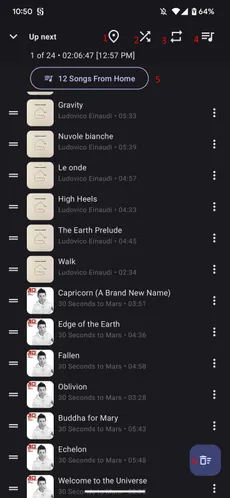
- Scroll the list to the currently playing song when it’s not currently visible.
- Toggle the player shuffle mode.
- Toggle the player repeat mode.
- Save current queue as a playlist.
- Load another queue if the multiple media queue option is enabled.
- Stop playback, clear and delete current queue.
You can also swipe media right to quickly move it to the next play position.
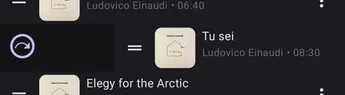
Swipe left to quickly remove media from the queue.
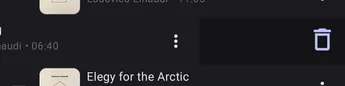
For the swipe action to work, swipe far enough to trigger the icon animation and haptic feedback.
Related pages
Section titled “Related pages”Lyrics interfaceConfigure and use the Symfonium lyrics interface, including preview behavior, text settings, line sync, and display options.