
此内容尚不支持你的语言。
Symfonium can connect to your Plex servers and play, cast and offline cache your music from it.
All Plex documentation can be find on Plex support site: Plex support
Adding host
Section titled “Adding host”Symfonium supports multiple ways to authenticate with Plex servers.
The simplest solution is to use Plex web authentication and a Plex.tv account.
Symfonium does not have access to your account or password, and this supports Google / Facebook accounts. This mode supports all account types and shared servers.
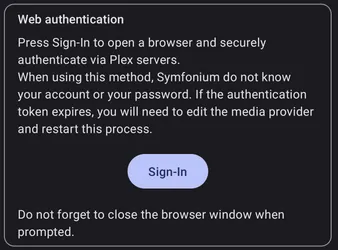
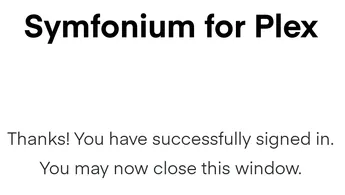
This opens a browser window to authenticate with Plex. Close the window once it is done.
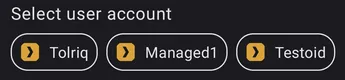
Once authenticated, you can select the server you want to add and the account you want to use if there are multiple accounts.

You can also skip the Plex.tv account usage and detect servers running locally.

All settings
Section titled “All settings”To access all available settings for a provider, edit the provider after it has been added. (Settings → Manage media providers: Settings - Manage media providers)
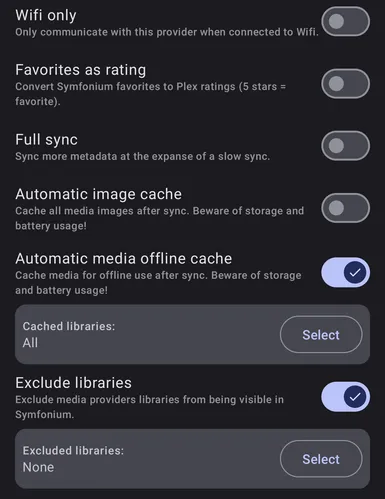
Wifi only
Section titled “Wifi only”Enable this option to prevent Symfonium from accessing the server when not connected to Wi-Fi.
Favorites as rating
Section titled “Favorites as rating”Since Plex does not have favorites, enabling this setting automatically converts Symfonium favorite status to a 5-star rating.
Full sync
Section titled “Full sync”The Plex API does not return all album information, such as moods, styles, or album types. Enable this option so Symfonium requests the data for each album. This slows sync but provides more data to browse your library.
Automatic image cache
Section titled “Automatic image cache”Enabling this option will cache all media images locally on your device after each sync. However, it can also use up storage space on your device and potentially drain your battery faster if you have a large library with many images. It’s recommended to use this option if you have enough storage space available on your device and don’t mind the potential battery drain. If you have limited storage or battery life, it may be better to disable this option.
Automatic media offline cache
Section titled “Automatic media offline cache”Enabling this option will cache media files from selected libraries for offline usage after sync, allowing you to play your music even when you are not connected to the internet. However, this may consume a lot of storage and battery usage, so it is important to consider this before enabling this option.
Exclude libraries
Section titled “Exclude libraries”While you can filter libraries at any time, you can also exclude some completely so they never appear in Symfonium.
Provider notes
Section titled “Provider notes”Add a Plex Password to a Google or Facebook Account
Section titled “Add a Plex Password to a Google or Facebook Account”Click for details
If you first started using Plex with your Google or Facebook account, you don’t have a Plex password. You can add a regular password to your account at any time. This allows signing in to the Plex account without Google or Facebook, using the account email address and password.
- Sign in to the Plex web app.
- Visit your Plex account page.
- In the Password section, you should see Not set , showing that you do not have a password yet.
- On the Accounts tab, click the Edit link the Password section.
- Enter your new account password (be sure to choose a strong, unique one!) and then confirm it.
- Click the Save Changes button.
You can now sign in to your account using a password in Symfonium.
Login with 2FA
Section titled “Login with 2FA”Click for details
You can still sign in via 2FA. Specifically, you append a valid verification code to the end of the password when submitting: <password><verification code>
For instance, imagine that your password is “secret” (please, please use a strong, unique password) and that you check your authenticator app and receive the verification code “123456”. You would then submit secret123456 as the password.