
此内容尚不支持你的语言。
Custom themes let you set the individual colors used throughout the Symfonium interface. They can be created in the app or imported from a JSON file, then edited, renamed, exported, or deleted.
Open the custom theme settings
Section titled “Open the custom theme settings”- Open Settings in Symfonium.
- Open Interface settings.
- Open Theme, font and colors.
- Under Default color source, select Custom theme.
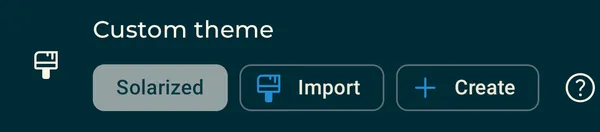
The Custom theme section lets you select a saved theme, import a JSON theme, or create a theme directly in Symfonium.
Create a theme in Symfonium
Section titled “Create a theme in Symfonium”- In the Custom theme section, select Create.
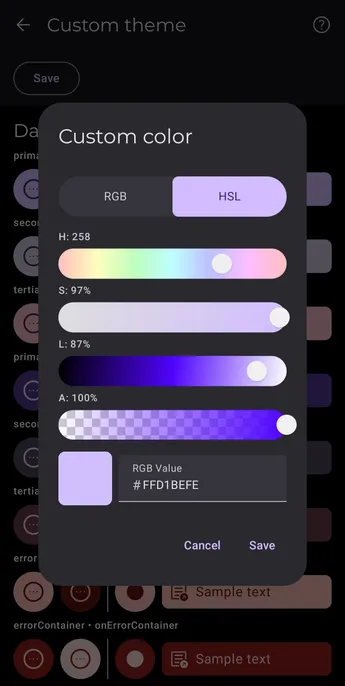
- Select a color role to open the color editor.
- Set its color using the RGB or HSL controls.
- Repeat for the other roles, then save the theme.
The editor shows the available color roles and previews their colors. See Theme colors documentation for the mapping between those roles and Symfonium interface elements.
Import a theme
Section titled “Import a theme”Custom color themes use JSON files that contain the theme’s color data.
- Download or create a compatible JSON theme.
- Open the Custom theme section in Symfonium.
- Select Import and choose the JSON file.
Imported themes are saved locally and remain available in the custom theme selector. When importing a theme from Symfonium Styles, use the downloaded JSON file without editing its contents.
Create a JSON theme with Material Theme Builder
Section titled “Create a JSON theme with Material Theme Builder”Symfonium color roles follow Material Design 3 naming, so you can use Google’s Material Theme Builder or Material Theme Builder for Figma as a starting point.
- Create the colors in Material Theme Builder.
- Export the theme in Material Theme (JSON) format.
- Import the exported JSON file into Symfonium.
- Rename the imported theme and export it from Symfonium if you want a smaller Symfonium theme file for backup or sharing.
Some roles have specific uses in Symfonium that differ from their general Material Design role. Review the theme color mapping when adjusting those colors.
Edit, rename, export, or delete a theme
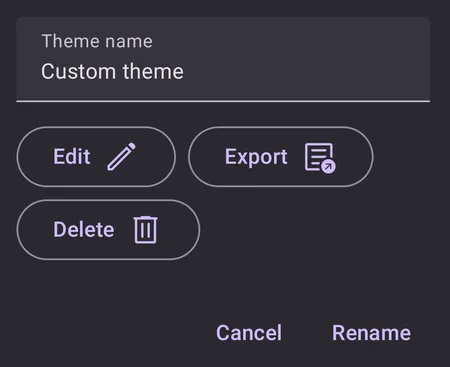
Section titled “Edit, rename, export, or delete a theme”Select an imported or created theme again to open its management dialog.
- Edit opens the full theme editor so you can change individual colors and preview the result.
- Rename changes the name shown in the custom theme selector.
- Export saves the theme as a JSON file for backup or sharing.
- Delete removes the theme from Symfonium’s local database.
Download and share themes
Section titled “Download and share themes”Symfonium Styles is the moderated catalog for sharing Symfonium color themes and other styles. You can browse and download public themes without signing in.
To share a color theme:
- Open the theme management dialog and select Export.
- Sign in to Symfonium Styles and upload the JSON file exported by Symfonium.
- Add a clear name and description, plus at least one screenshot showing the actual theme.
See the Symfonium Styles color theme import instructions and upload guidelines for the current requirements.