
此内容尚不支持你的语言。
Kodi require some configuration before allowing remote access by Symfonium. (See Kodi - media provider configuration)
Add provider
Section titled “Add provider”If the wizard does not auto-detect your host, add it manually.
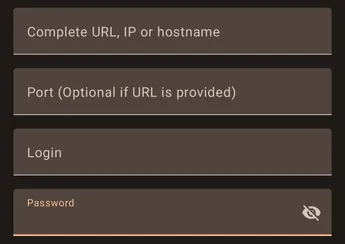
The wizard support many ways to enter your provider information to be able to connect and will try to figure out the proper parameters.
- Full url
You should enter the full connection url in the URL field.

In that case the field port must be left empty.
- IP and Port
Or you can just enter the IP and port of the provider and Symfonium will try to figure out the rest.
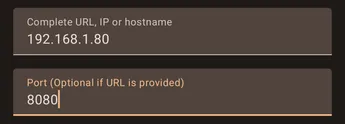
The port field, when filled, takes precedence over any port in the URL field.
As a reminder http port is 80 and https port is 443.
Support
Section titled “Support”
If you have problems configuring your provider press the Enable button in the support card, then try again to add your host.

After Symfonium shows the error message, press the send button to open your email client with attached logs and write a message so that I can help you.
All settings
Section titled “All settings”To access all available settings for a provider, edit the provider after it has been added. (Settings → Manage media providers: Settings - Manage media providers)
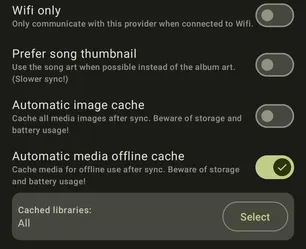
Wifi only
Section titled “Wifi only”Enable this option to prevent Symfonium from accessing the server when not connected to Wi-Fi.
Prefer song thumbnail
Section titled “Prefer song thumbnail”Symfonium will store and display individual song thumbnails when available and not the album one.
Automatic image cache
Section titled “Automatic image cache”Enabling this option will cache all media images locally on your device after each sync. However, it can also use up storage space on your device and potentially drain your battery faster if you have a large library with many images. It’s recommended to use this option if you have enough storage space available on your device and don’t mind the potential battery drain. If you have limited storage or battery life, it may be better to disable this option.
Automatic media offline cache
Section titled “Automatic media offline cache”Enabling this option will cache media files from selected libraries for offline usage after sync, allowing you to play your music even when you are not connected to the internet. However, this may consume a lot of storage and battery usage, so it is important to consider this before enabling this option.
Kodi configuration
Section titled “Kodi configuration”Enable remote access and auto discovery
Section titled “Enable remote access and auto discovery”From the home screen of Kodi select Settings
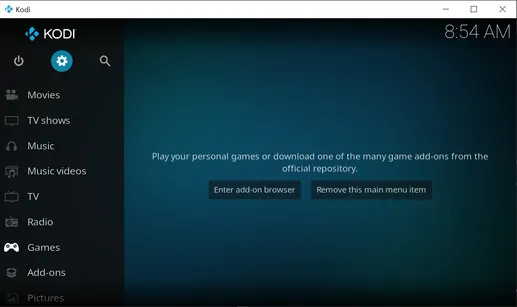
Go to Service settings
Section titled “Go to Service settings”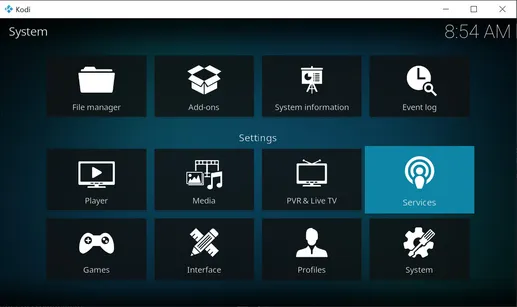
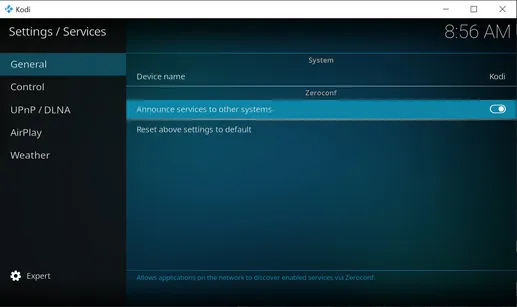
Activate Announce services to other systems
Go to Control menu
Section titled “Go to Control menu”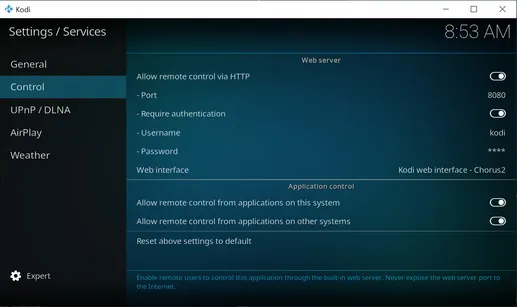
Activate the options:
- Allow remote control via HTTP
- If you really want to use Kodi without a password, disable the require authentication option.
Keep in mind that Kodi’s HTTP server is not very secure. Make sure the Kodi machine is not accessible from the internet or untrusted computers. You should set a username and password to secure the connection.