
You can select multiple items and perform actions on all of them.
This is available in most vertical lists and in those lists replace the long press drag and drop when enabled. (That feature is still available in a few other places).
You can start multi-select by clicking the multi-select button on those screens. Click it again to stop multi-select.
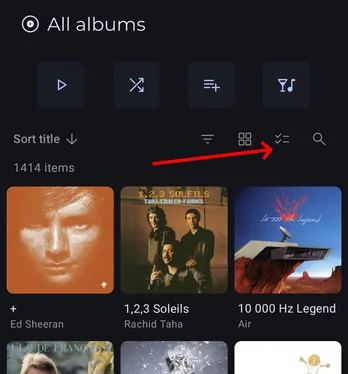
You can also long press any item to start that mode and select that item.
Note: You can disable this in Settings/Interface settings/Media lists.
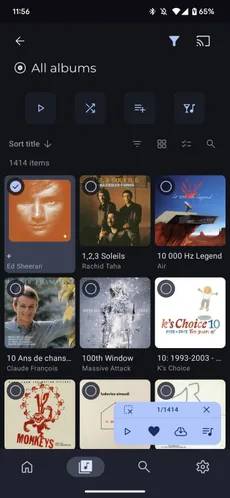
When in multi-select mode, selected items have a distinctive background and a check mark.
You can click items to toggle their selection state.
You can use the bottom right action row to choose the action you want to perform on the items. Actions depends on the selected items and may change during selection.
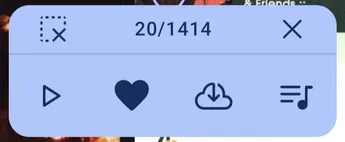
Press the  to stop selection mode and
  to unselect all selected items.
This feature also supports dragging to quickly select multiple items. Start with a long press on an item and, without lifting your finger, move to the other items you want to select.
You can also start the gesture on an already selected item to start an unselect drag gesture.
Video: