Symfonium can import playlists from your media providers and keep them in sync. You can enable automatic import in each provider’s settings or manually choose the playlists to import.
Automatic import
Section titled “Automatic import”Enable Automatic playlist import for each provider whose playlists you want to import automatically.
- Open Settings in Symfonium, then Manage media providers.
- Press the provider you want to configure to open its settings.
- Find and enable Automatic playlist import, then save your changes.
- Sync the provider to import its playlists.
The option works differently depending on the provider type. Both variants skip playlists that have already been imported.
Music servers
Section titled “Music servers”For music servers, Symfonium imports server playlists after a provider sync using Online first mode. Changes sync automatically, and editing the playlist in Symfonium requires a connection to the server.

Playlists that are read-only on the server, or whose provider does not support playlist editing, are imported as Read-only instead.
File providers
Section titled “File providers”For supported file providers, Symfonium looks for M3U and PLS files while scanning your configured folders and imports them as Read-only playlists. Edit the original playlist file, then sync the provider to update the playlist in Symfonium.

Manual import
Section titled “Manual import”Import from a music media provider
Section titled “Import from a music media provider”Use manual import to choose specific server playlists or select a different sync mode.
-
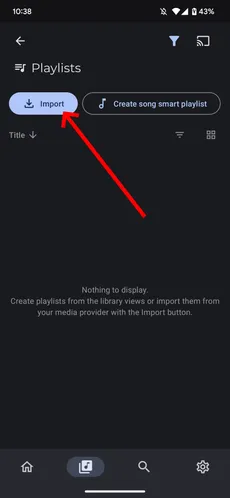
Open Library, then Playlists, and press Import.
-
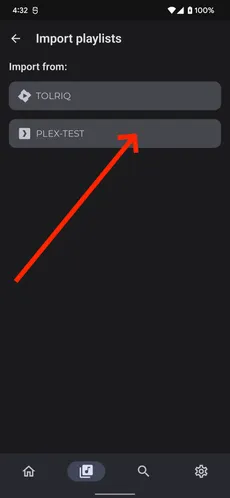
Select the media provider you want to import from.
-
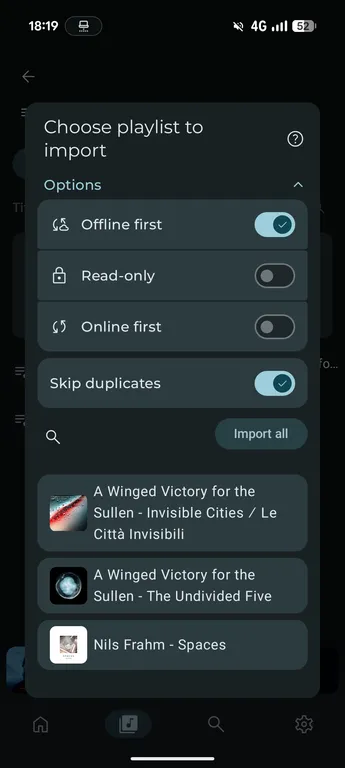
In Choose playlist to import, expand Options to choose a sync mode and set Skip duplicates. Select a playlist to import it, or press Import all.
Choose a sync mode
Section titled “Choose a sync mode”| Mode | Sync behavior | Editing in Symfonium |
|---|---|---|
| Offline first | Manually sync changes to or from the server. | You can edit the playlist while offline. |
| Read-only | Automatically sync changes from the server. | The playlist cannot be edited in Symfonium. |
| Online first | Automatically sync changes with the server. | A server connection is required to edit the playlist. |
Enable Skip duplicates to skip an import when a local playlist already has the same name. This is useful when using Import all repeatedly.
Import from a file media provider
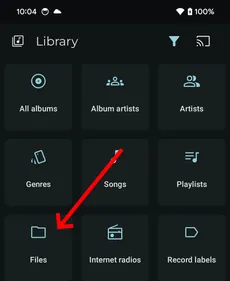
Section titled “Import from a file media provider”For file providers such as Local device or SMB, you can also import individual playlist files from Library → Files.
-
Open Library, then Files.
-
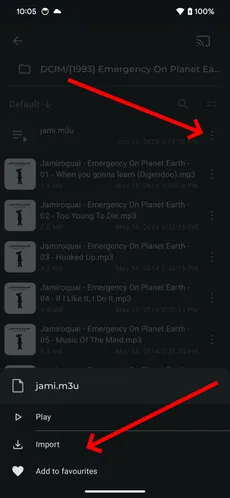
Browse to your playlist file, press its three-dot menu, then select Import.
-
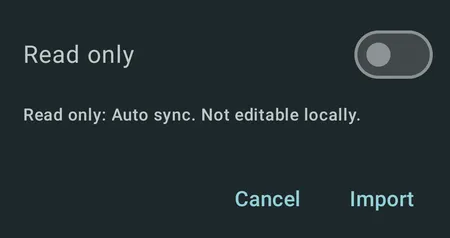
Enable Read-only if you want Symfonium to update the playlist from the original file during provider syncs. Leave it disabled if you want to edit the imported copy in Symfonium. Press Import to confirm.
For server-managed playlists on providers such as Plex or Emby, use the music provider import instead.
Sync a single playlist
Section titled “Sync a single playlist”Open an imported playlist and press its sync button to sync it manually. Read-only and Online first playlists also sync automatically.
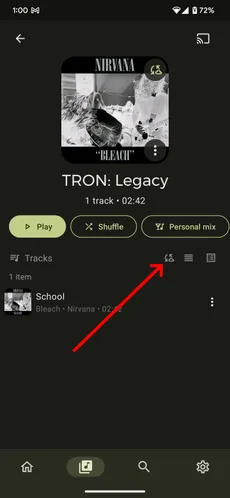
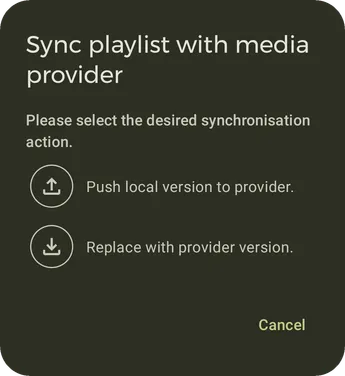
For an Offline first server playlist, choose the direction in the Sync playlist with media provider dialog:
- Push local version to provider. replaces the server playlist with your local version.
- Replace with provider version. replaces the playlist in Symfonium with the server version.
The available actions depend on the playlist mode and the provider’s capabilities.