
Available settings
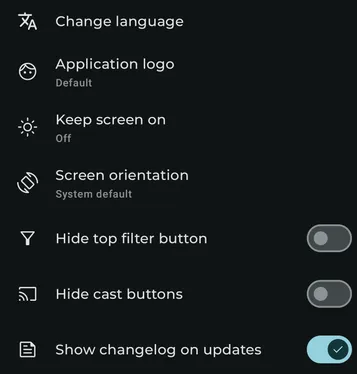
Section titled “Available settings”Change language
Section titled “Change language”On Android 13 and above, open the system app-language selector to override Symfonium’s language.
Overscan level
Section titled “Overscan level”On Android TV, adjust the interface inset to compensate for displays that crop content near the edges.
Application logo
Section titled “Application logo”Choose the logo used in the app launcher, notifications, and other places. Symfonium may restart, and existing shortcuts may need to be recreated.
Keep screen on
Section titled “Keep screen on”Choose when Symfonium keeps the screen on: always, during playback, or while showing lyrics.
Screen orientation
Section titled “Screen orientation”Lock the screen orientation.
Rounded corner size
Section titled “Rounded corner size”Choose the global size of rounded interface corners.
Show track number
Section titled “Show track number”Show track numbers on Now Playing screens.
Hide status bar
Section titled “Hide status bar”On Android 11 and above, hide the system status bar.
Ignore camera hole protection
Section titled “Ignore camera hole protection”When the status bar is hidden, allow content to use the area around the display cutout.
Hide top filter button
Section titled “Hide top filter button”Hide the filter button from the top button bar.
Hide top home button
Section titled “Hide top home button”Hide the Home button from the top button bar. This option is shown when fewer than two main navigation tabs are configured.
Hide cast button
Section titled “Hide cast button”Hide the Cast button from the top button bar and Now Playing screens.
Show changelog on updates
Section titled “Show changelog on updates”Show the changelog after application updates.
Hide tip badges in settings
Section titled “Hide tip badges in settings”Hide tip badges from the Settings page. They remain available on the About page.