
An effective support report has two parts: a clear description and fresh logs captured while the problem occurs. Symfonium runs across many media providers, playback methods, devices, and Android configurations, so the same symptom can have different causes.
Quick summary
Section titled “Quick summary”- Go to Settings > Advanced and enable Debug mode.
- Reproduce the complete problem once.
- Disable Debug mode.
- Select Share logs with support immediately afterward and enter a recognizable description.
- Open a support issue and include the exact description used for the logs.
Before you start
Section titled “Before you start”Check the documentation and search existing support topics for the same symptom. If the behavior already exists but is not working as expected, continue with a support report. If you are asking for new or different behavior, make a feature request instead.
Prepare one clear sequence that reproduces one problem. Capturing several unrelated issues in the same logs and topic makes each one harder to investigate.
Capture and share current logs
Section titled “Capture and share current logs”Share logs with support is the fastest and preferred way to send current logs from Symfonium.
- Open Symfonium and go to Settings > Advanced.
- Enable Debug mode.
- Reproduce the complete sequence once, including the action that starts it. If possible, note the approximate time when the problem occurs.
- Disable Debug mode so Symfonium stops writing to the log file.
- Select Share logs with support immediately afterward, enter a recognizable description such as your forum username and a short issue title, then send the logs.
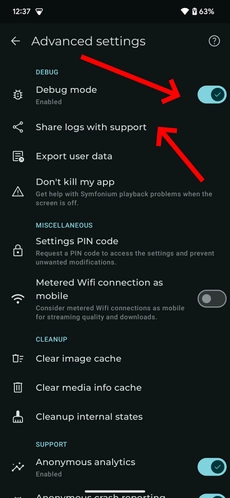
Symfonium prepares and uploads the logs securely. Passwords and authentication tokens are automatically redacted. If the upload succeeds, do not upload the same logs manually.
For an intermittent issue, leave debug mode enabled only until the problem occurs, disable it, then share the logs as soon as possible.
Describe the problem clearly
Section titled “Describe the problem clearly”Logs show what the app recorded, but support still needs your context to find the relevant event and understand the expected behavior. Include:
- A short, specific title
- What happened and what you expected instead
- The exact steps needed to reproduce the issue
- Whether it happens every time or only under certain conditions
- The approximate time when you reproduced it for the uploaded logs
- Your device, Android version, and Symfonium version
- The media provider and server version involved, when relevant
- The playback method or output involved, such as the local device, Chromecast, UPnP/DLNA, Android Auto, Bluetooth, or a USB DAC
- The exact description used when sharing or uploading the logs
Keep one problem per topic. Screenshots or a short video can clarify a visual or timing issue, but they do not replace diagnostic logs.
Access generated files yourself
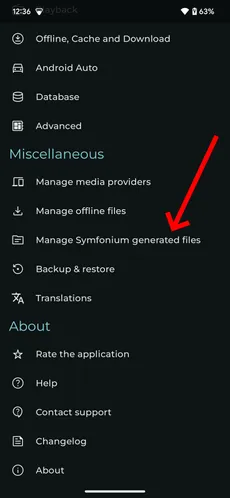
Section titled “Access generated files yourself”The direct sharing action uploads current logs but does not give you the generated archive. Open Manage Symfonium generated files when you need to inspect, export, or manually upload a log file yourself.
- Open Symfonium.
- Go to the root Settings page.
- Open Manage Symfonium generated files.
- Find the relevant log file.
- Use the available action to upload, share, export, or delete it.
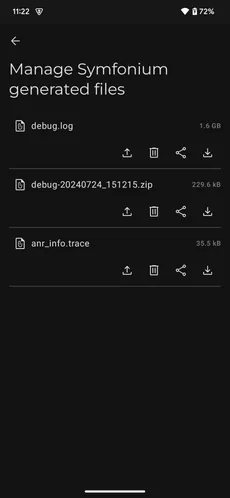
This screen can also contain ANR reports when the app froze or Android reported that it was not responding. Include the relevant ANR report with the logs when one is available.
Upload logs or additional files manually
Section titled “Upload logs or additional files manually”Use manual upload only when:
- You want to read the logs before sending them
- Share logs with support failed or reports that the archive is larger than 100 MB
- You need to send an ANR report or additional files, such as a media sample, screenshot, video, or server log
Use a description that support can match to your forum topic:
Forum user: myusernameIssue: Chromecast stops after first trackCapture an Android OS bug report
Section titled “Capture an Android OS bug report”If you cannot enable Debug mode, or Symfonium support specifically asks for an Android OS bug report, capture a system bug report instead. Android bug reports contain device logs, stack traces, and diagnostic information from Android and installed apps, so they may contain private or sensitive data.
- Reproduce the issue, then capture the bug report immediately afterward.
- Follow Google’s instructions to capture a bug report from your Android device. You may need to enable Android’s Developer options first, then select Take bug report and wait for the report-ready notification.
- Save the original bug report archive without extracting or modifying it.
- Upload the archive to the Symfonium secure upload site with a recognizable description such as your forum username and issue title.
- Open your support topic promptly and include the exact description used for the upload.
Common mistakes to avoid
Section titled “Common mistakes to avoid”- Do not open a technical support issue without fresh logs that contain the complete reproduction.
- Do not paste log contents into the public topic. Use the secure sharing options described above.
- Do not write only “it does not work.” Explain what happened, what you expected, and how to reproduce it.
- Do not assume that uploading files creates a support request or notifies support.
- Do not leave Debug mode enabled while sharing the logs or after capturing the problem.
- Do not manually upload the same logs if Share logs with support already succeeded.
Submit your support issue
Section titled “Submit your support issue”Sign in to the forum, open the Support category, select New Topic, and follow the reporting wizard. Keep the provided template and complete every relevant section.
State whether you shared the logs from the app or uploaded them manually, and include the exact description used for the upload.