
Symfonium lets you organize, play, and cast music and audiobooks stored on your Android device or SD card.
Add provider
Section titled “Add provider”Open Settings → Manage media providers → Add media provider and choose Local device. Select how Symfonium should find your files.
By folders / SD Card
Section titled “By folders / SD Card”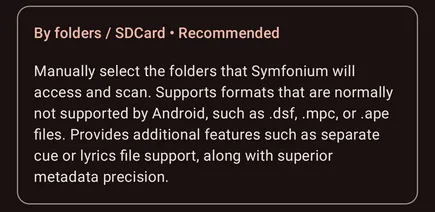
This is the recommended mode. Select the folders Symfonium can access, and Symfonium scans their files directly. It supports formats Android may not list, such as DSF, MPC, APE, and WV, as well as external CUE files and lyrics.
Add folders
Section titled “Add folders”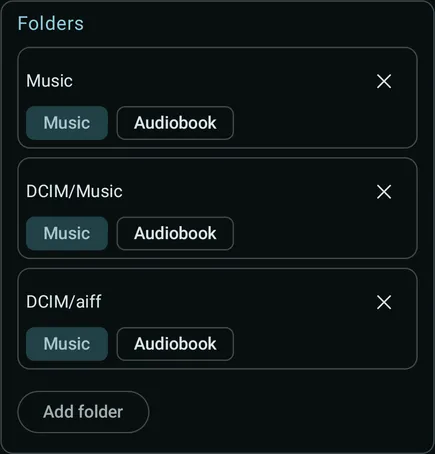
Press Add folder and select a folder containing your music or audiobooks in Android’s folder picker. Press Use this folder and confirm the access request. Repeat to add more source folders.
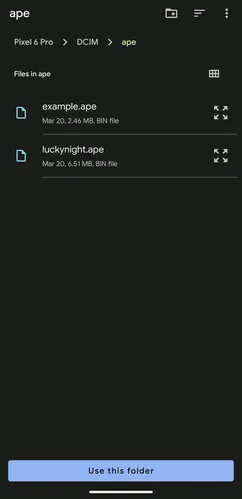
Choose Music or Audiobook for each folder. Press the × beside a folder to remove it from the selection. Keep at least one folder.
By Android
Section titled “By Android”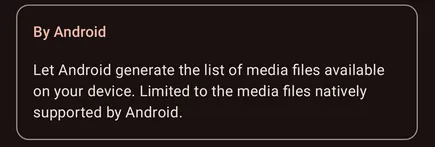
Android supplies the list of media files, and Symfonium uses its custom tag parser to read their metadata. This mode is limited to files Android includes in its media database.
Press Grant permission and allow access to your audio files. The current wizard uses Symfonium’s parser automatically.
On Android TV, the wizard opens directly at this permission step.
Finish setup
Section titled “Finish setup”For either access method, review Scrape additional artist metadata and Generate missing thumbnails from songs, then press Finish to add the provider and start scanning.
After adding or modifying files, use Sync to refresh your library. In folder mode, you can also enable Auto sync after setup.
All settings
Section titled “All settings”Open Settings → Manage media providers, select Local device, and choose Edit. In folder mode, you can change the source folders and their media types. In Android-backed modes, the Permissions card lets you grant audio access again if needed. Press Update to save your changes, then sync to refresh the imported media.
The Scanner mode shown at the top identifies how the provider works. Symfonium (Files - SAF) is folder mode. Symfonium (Media Store) uses Android’s file list with Symfonium’s parser. The screenshots below show folder mode. Options marked Folder mode only are available in By folders / SD Card mode.
Clear tag cache
Section titled “Clear tag cache”
Clear the cached tags if you have changed metadata in your files and a normal sync does not detect the changes. All files will need to be scanned again during the next sync, which can take time.
Artist info folder
Section titled “Artist info folder”
Folder mode only. Press Select and choose a folder containing one subfolder per artist. This folder can be anywhere accessible through Android’s folder picker. It does not need to be inside a media source folder. See Artist information folder for the layout, images, and metadata files you can provide.
Scrape additional artist metadata
Section titled “Scrape additional artist metadata”
Retrieve supplementary artist images and biographies from online sources. When enabled, Clear scraped data lets you remove previously scraped artist data.
Generate missing thumbnails from songs
Section titled “Generate missing thumbnails from songs”
Generate artist and genre images from track artwork when no image is available.
Prefer track thumbnail
Section titled “Prefer track thumbnail”
Use each track’s artwork when available instead of the album artwork. This is useful for compilations with different track images, but makes synchronization slower.
Tag ratings as user ratings
Section titled “Tag ratings as user ratings”
Treat ratings imported from file tags as user ratings instead of scraped ratings.
Artist tag as display artist
Section titled “Artist tag as display artist”
Use the raw Artist tag as the display artist when present instead of building it from the parsed list of artists.
Ignore explicit tags
Section titled “Ignore explicit tags”
Do not import explicit-content markers from file tags.
Ignore MusicBrainz IDs
Section titled “Ignore MusicBrainz IDs”
Ignore MusicBrainz IDs from parsed tags. This can prevent artist or album splits caused by inconsistent IDs.
Prefer Year tag
Section titled “Prefer Year tag”
Use the raw Year tag when present instead of extracting the year from full date tags.
Artist/album artist tag separators
Section titled “Artist/album artist tag separators”
Press Set to configure the separators used to split artist and album artist values.
Genre tag separators
Section titled “Genre tag separators”
Press Set to configure the separators used to split genre values.
MBID tag separators
Section titled “MBID tag separators”
Press Set to configure the separators used to split MusicBrainz ID values. See Symfonium custom tag parser for supported tags and separator behavior.
Split albums by
Section titled “Split albums by”
Press Select to choose which fields must match for tracks to belong to the same album, such as Folder, MusicBrainz ID, and Album version.
Auto sync
Section titled “Auto sync”
Folder mode only. Try to scan the selected folders automatically when the app starts and when media is added. Enabling this option may ask for audio access permission. It is not recommended for large libraries. Use a manual sync when needed.
Automatic playlist import
Section titled “Automatic playlist import”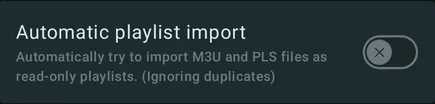
Folder mode only. Automatically import M3U and PLS files found during synchronization as read-only playlists, ignoring duplicates. See Import and sync media provider playlists for playlist paths and update behavior.
Encoding time as date added
Section titled “Encoding time as date added”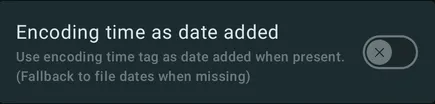
Folder mode only. Use the encoding-time tag as the date added when present, falling back to file dates when it is missing.
Stable date added
Section titled “Stable date added”
Folder mode only. Keep each track’s existing date added when its file is modified, so editing tags does not make the track appear newly added. This option is enabled by default for newly added folder-mode providers.
Scrobble as advertisement
Section titled “Scrobble as advertisement”
Mark media played from this provider as advertisements so compatible scrobbler apps can ignore them.
Exclude tracks shorter than
Section titled “Exclude tracks shorter than”
Set a minimum track duration to filter out unwanted short media.
Exclude folders
Section titled “Exclude folders”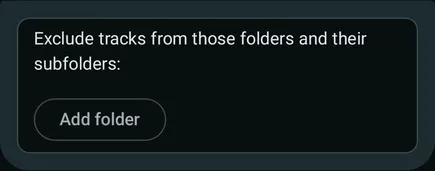
Under Exclude tracks from those folders and their subfolders, press Add folder to exclude paths from synchronization. This removes those folders from the library without deleting files from your device. When available, you can also restore files previously hidden from Symfonium here.
Clear playback history
Section titled “Clear playback history”
Clear the playback history associated with this provider, including play counts and skipped-track data.
Custom parser details
Section titled “Custom parser details”See Symfonium custom tag parser for supported tags, file formats, separators, and metadata behavior.