
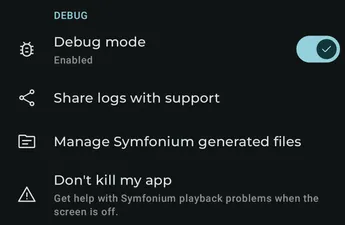
Debug mode
Section titled “Debug mode”Enable Symfonium’s powerful logging system to help support diagnose and fix your issues. See How to gather logs and open an issue
This mode can generate very large logs and slow down the app while they are written. Only enable it when you have an issue to reproduce.
Share logs with support
Section titled “Share logs with support”Securely upload the current log file to support. Contact support afterward, because uploaded files are not checked manually and are automatically deleted after a couple of days.
If you cancel the operation, return to the main settings page and use Manage generated files to send the correct file.
Don’t kill my app
Section titled “Don’t kill my app”Open https://dontkillmyapp.com/ for information about fixing device behavior that can prevent Symfonium from working correctly in the background.
Miscellaneous
Section titled “Miscellaneous”
Database
Section titled “Database”Open the Database settings for library synchronization, sorting, ratings, and waveform extraction options.
Settings PIN code
Section titled “Settings PIN code”When set, a PIN code is required to access settings and prevent unwanted modifications.
Metered Wi-Fi connection as mobile
Section titled “Metered Wi-Fi connection as mobile”Treat metered Wi-Fi connections as mobile connections when choosing streaming quality and download behavior.
VPN connection as mobile
Section titled “VPN connection as mobile”Treat VPN connections as mobile connections when choosing streaming quality and download behavior.
Cleanup
Section titled “Cleanup”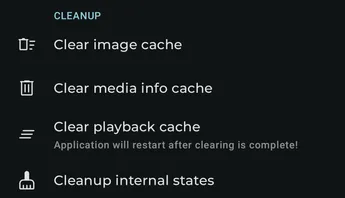
Clear image cache
Section titled “Clear image cache”Remove every cached image. Images are downloaded again on demand while you browse the app.
Clean unused image cache
Section titled “Clean unused image cache”Remove cached images and image metadata that are no longer referenced by your library.
Clear media info cache
Section titled “Clear media info cache”Clear precise media information collected during playback. This can help after replacing a media file without changing its name.
Clear scraped artists info cache
Section titled “Clear scraped artists info cache”Clear cached artist information scraped from external sources.
Clear playback cache
Section titled “Clear playback cache”Clear the playback cache in case it becomes corrupted. Symfonium restarts after the operation. This option is only shown when a playback cache is configured.
Cleanup internal states
Section titled “Cleanup internal states”Repair invalid internal state after an unexpected app termination. Use this only when requested by support. See Don’t kill my app for ways to reduce background app termination during synchronization.
Compact database
Section titled “Compact database”Compact the internal database to reclaim unused space.
Clear detailed playback history
Section titled “Clear detailed playback history”Delete detailed playback history while keeping play and skip counts.
Support
Section titled “Support”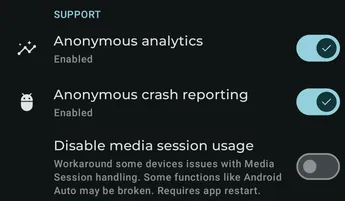
Anonymous analytics
Section titled “Anonymous analytics”Enable anonymous analytics sent to a private Matomo instance. This helps prioritize improvements and new features.
Anonymous crash reporting
Section titled “Anonymous crash reporting”Enable anonymous crash reports. If you experience a crash, contact support with details because an automatic report is often not sufficient by itself.
The following developer options are only visible when developer mode is enabled and should normally be changed only when requested by support.
Disable output switcher
Section titled “Disable output switcher”Disable Android’s output switcher integration.
Disable media session usage
Section titled “Disable media session usage”Some rare devices have a Media Session handling bug that can cause excessive CPU use. Enable this only when requested by support.
Restore defaults
Section titled “Restore defaults”
This button restores all settings on this page to their default values. You can also use the backup and restore function to switch between different configurations of the settings with ease. (Settings - Backup & restore)